Google’s desktop AI gets a macOS boost with a floating chat window and file-sharing powers
Google has broadened the reach of its Gemini artificial-intelligence platform by rolling out a dedicated application for macOS. The new software places the conversational assistant just a keystroke away on Apple computers, allowing users to summon a floating chat bubble, share on-screen windows, and generate media content without disrupting their workflow.
A desktop shortcut to Gemini
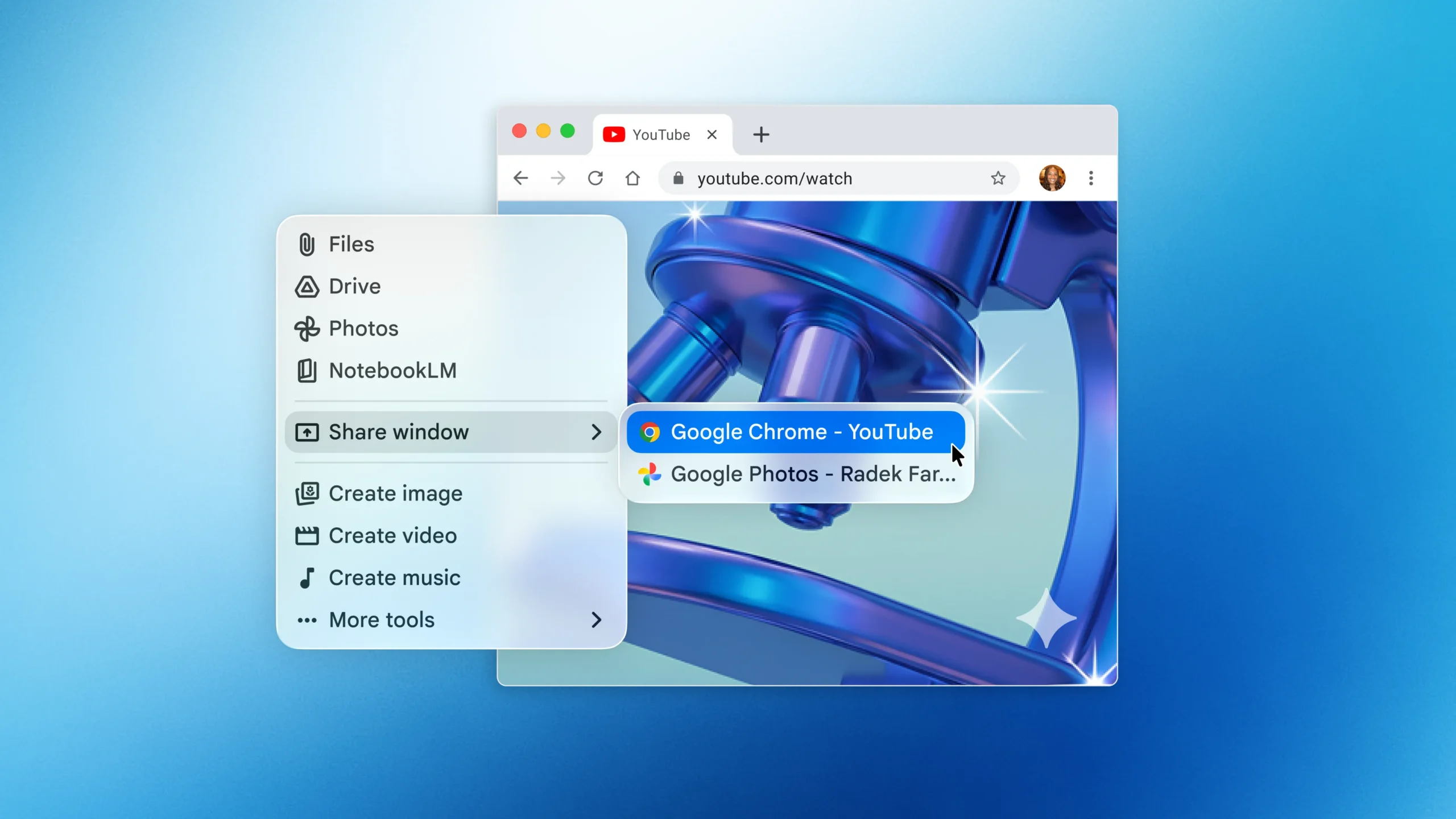
The macOS version of Gemini is designed around speed and accessibility. Once the app is installed, pressing Option + Space triggers a compact overlay that hovers above whatever is on the screen. From there, users can type or speak questions, drop in files, or invite the assistant to take a look at the active window. The interface draws inspiration from the familiar Spotlight search bar, but instead of just combing through files and web results, Gemini leverages Google’s large language model to provide contextual answers and creative output.
Key capabilities at launch
- Contextual assistance: After receiving the user’s explicit permission, Gemini can access the contents of the shared window to craft tailored responses.
- File uploads: Documents, images, and other assets stored locally or in Google Drive can be dropped into the conversation for analysis or transformation.
- Media generation: The assistant can produce images, video clips, and music snippets directly from text prompts, mirroring the creative tools available in the web and mobile versions.
- Conversation history: Past chats linked to a user’s Google account are synchronized, enabling multi-device continuity.
These features place Gemini in direct competition with a growing roster of desktop AI companions from Anthropic, OpenAI, and Perplexity. However, while rival apps already experiment with on-device task automation—such as opening files or executing commands—Google is currently positioning Gemini as an advisory layer rather than a full-fledged digital butler.
Setting up and granting permissions
Before Gemini can inspect an active window, macOS prompts users to grant the application system-level screen capture privileges. This extra step is designed to protect sensitive information and ensure that the assistant only receives data when explicitly allowed. Once permission is granted, sharing can be toggled on and off at any time from within the chat bubble, reinforcing user control over the AI’s visibility into personal content.
Google stresses that the assistant’s insight is limited to the information presented during each session. Closing the shared window or revoking access severs Gemini’s view, preventing any background monitoring. While the company has not published a separate privacy white paper for the macOS release, the permission-based approach aligns with existing policies governing Gemini’s handling of user data on the web and mobile devices.
Comparing Gemini with desktop rivals
The AI landscape on desktop machines has evolved quickly in the past year, and macOS now hosts a diverse field of conversational tools:
- OpenAI ChatGPT for Mac: OpenAI’s client embeds itself into the menu bar and offers plug-ins that can execute certain system actions, such as file retrieval or text summarization inside documents.
- Anthropic Claude: Claude for Mac focuses on long-context reasoning and can interact with files but also advertises limited automation features.
- Perplexity Desktop: Perplexity emphasizes web answer aggregation, displaying source citations in a split-pane layout for quick verification.
Gemini’s competitive edge lies in tight integration with Google services such as Drive and the ability to generate visual media from scratch. Nevertheless, the absence of built-in automation—an area where ChatGPT and Claude are inching forward—means power users may still juggle multiple assistants depending on the task at hand.
Availability, system requirements, and rollout
The application is a free download in every language and region where Gemini is already supported. Compatibility begins with macOS Sequoia (version 15.0) and extends to newer releases. Users running earlier operating systems will need to upgrade in order to install the software.
Google introduced a similar desktop client for Windows one day prior to the macOS launch, suggesting a cross-platform strategy aimed at placing Gemini within reach of as many personal computers as possible. While the company has not disclosed user numbers, the staggered release cadence hints at a measured rollout, presumably to gather feedback and refine the experience across different hardware configurations.
Integrating Gemini into daily workflows
For knowledge workers, the floating interface serves as a context-aware research partner. Copy and paste a dense paragraph, and Gemini can condense the text or propose follow-up questions. Creative professionals may lean on the AI to sketch rough storyboards, brainstorm musical motifs, or draft social-media posts. Students can upload lecture slides, then quiz the model on key concepts before an exam.
Imagem: Google
Because the chat bubble remains decoupled from browser tabs, Gemini reduces window clutter—a pain point for multitaskers who often juggle several applications at once. The keyboard shortcut can be pressed repeatedly without re-opening the main application window, allowing for brief, targeted consultations throughout the day.
Limitations and future potential
Despite the convenience, the current macOS release carries familiar caveats. Like other large language models, Gemini’s responses may occasionally be inaccurate or hallucinate details, underscoring the importance of human oversight. Moreover, the creativity tools—image, video, and music generation—are not yet substitutes for professional-grade software. Instead, they function best as starting points, supplying drafts that users refine in dedicated editing suites.
Google has not announced a timeline for expanding Gemini’s abilities to include direct device control. However, the company’s broader AI roadmap suggests incremental feature additions tied to user feedback. If competitors continue to push into automation, it is plausible that future versions of Gemini could gain deeper hooks into macOS, subject to Apple’s security frameworks.
Why the desktop matters in the AI race
Mobile devices popularized voice assistants and real-time translation, but for many, serious work still happens on a laptop or desktop. Embedding an AI assistant at the operating-system level removes friction from knowledge retrieval and content generation, potentially saving valuable minutes across repetitive tasks. That efficiency can add up for remote workers, creative teams, and students who rely on quick answers without breaking concentration.
At the same time, the competition for desktop mindshare underscores a shift in how tech companies view AI: not merely as a web service, but as a core utility akin to search or file management. Google’s decision to place Gemini alongside Spotlight on macOS signals its belief that conversational AI will become a staple of everyday computing, no different from launching an app or viewing notifications.
What’s next
With the macOS and Windows clients now in circulation, Google’s immediate challenge is to refine interface polish, expand language coverage, and close the gap in automation features. Feedback from early adopters will likely steer the next wave of updates, particularly in areas such as offline caching, citation transparency, and tighter integration with productivity suites like Docs and Sheets.
For users eager to experiment today, the download takes only a few minutes, and the familiar Google account sign-in keeps onboarding simple. Whether Gemini becomes an indispensable co-pilot or a niche tool will depend on its ability to grow alongside user expectations in a rapidly evolving marketplace.
FAQ
- How do I install Gemini on my Mac?
Navigate to the official Gemini download page, select the macOS version, and follow the installation prompts. You must be running macOS Sequoia 15.0 or later. - What keyboard shortcut opens the Gemini chat bubble?
Press Option + Space to bring up the floating window from anywhere on your desktop. - Can Gemini see everything on my screen?
No. The assistant only gains visibility into a window after you grant explicit permission. You can revoke access at any time. - Is the macOS app paid or free?
The application is free to download in all regions where Gemini is supported. - Does the app work offline?
Gemini relies on cloud processing, so an active internet connection is required for most features. - Can I resume conversations from my phone?
Yes. Chats are tied to your Google account, allowing you to pick up where you left off on web, mobile, or desktop.